

Appearance
AI System Risks
An AI System risk is a risk from the organization taxonomy that applies to one AI System. The risks of an AI System and their threats show the risk exposure of that AI System.
Where in Modulos
AI System risks are on the page AI System → Risks. On this page, teams:
- add risks from the organization taxonomy to the AI System
- select the threat vectors that apply in this deployment context
- quantify the risk threats and compare their values with the limits
For the roles, the totals, and the risk limits, see Risk Operating Model.
Permissions
- AI System Owners add and delete risks, quantify threats, and create Jobs that quantify risks.
- AI System Editors add and change risks, and add or remove their threat vectors.
- AI System Viewers see the risks and their results.
The Risks page has three cards and two tabs:
- AI System Risk Value: the total value of the risks against the limit of the AI System, as money and as a percentage. A Rejected AI System shows No risk limit and the cause.
- Risk Status: the number of risks in each status: Quantified, In Progress, and Unquantified.
- Top 3 Highest Risks: the three risks with the highest value. Select a risk to open it.
- The Risks tab: the table of risks, with the columns Specific Risk, Risk Limit, Current Risk, Limit Utilization, Status, and Threat Vectors. Use the Status and Category filters to show fewer risks.
- The Risk Value Over Time tab: the total value of the risks across time, and a line for the limit of the AI System. The Stacked and Breakdown views show each risk.
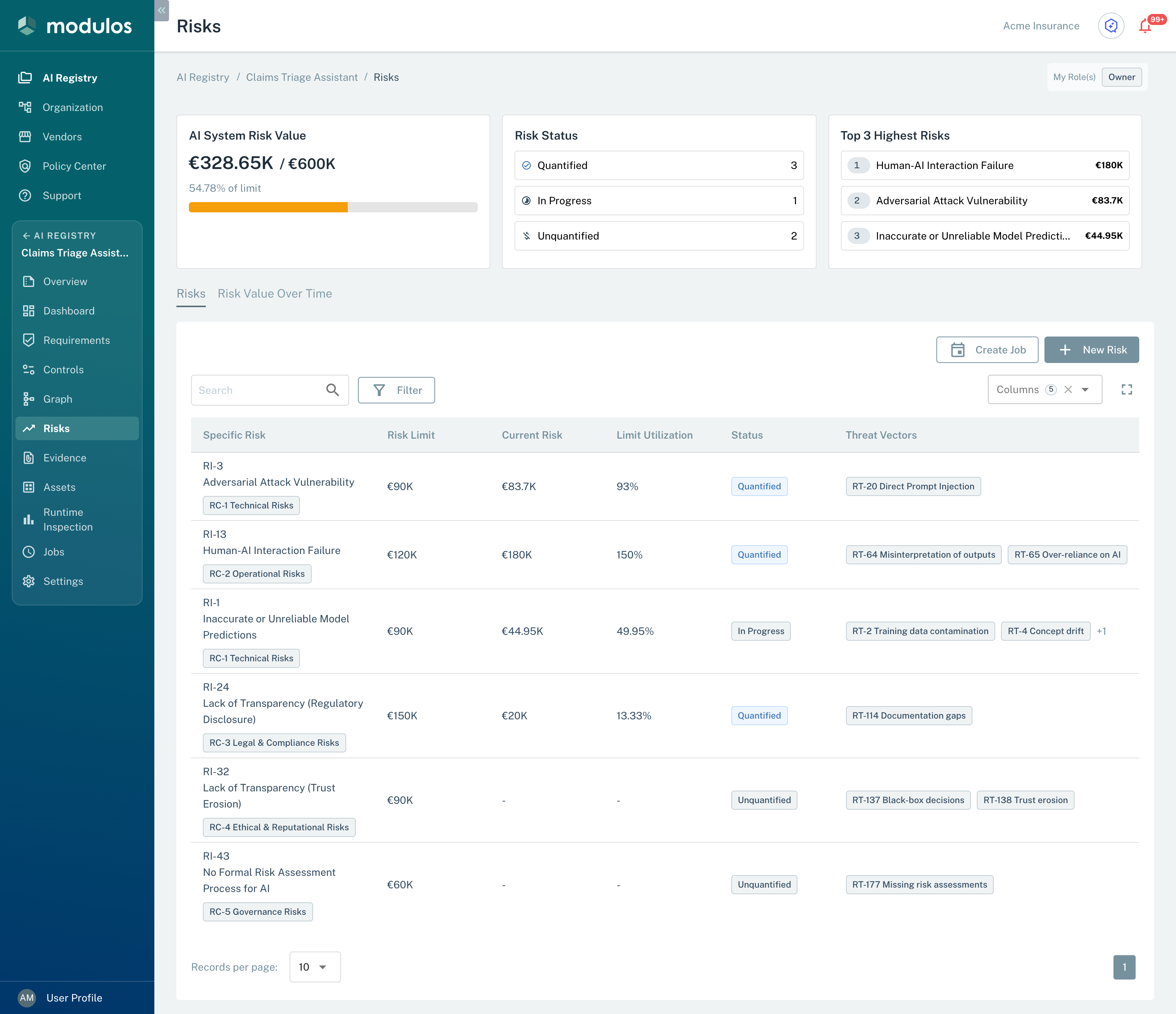
- 1AI System Risk ValueThe total value of the risks against the limit of the AI System.
- 2Risk StatusThe number of risks in each status.
- 3RisksThe table of risks with their limit, value, status, and threat vectors.
How it works
The risks of an AI System come from the taxonomy:
- You add an organization risk to the AI System.
- You select the threat vectors that apply in this deployment context.
- Modulos makes one risk threat in the AI System for each selected threat vector.
- You quantify each risk threat to get a monetary value.
The value of an AI System risk is the sum of the values of its quantified risk threats. Its status comes from the status of its risk threats.
Risk threats
A risk threat is one taxonomy threat vector in one AI System:
- It copies the name and the description of the threat vector into the AI System.
- You quantify it independently of the other risk threats.
- Its value goes into the value of its risk.
Consistency
You can add a taxonomy risk to an AI System only one time, and Modulos refuses a second copy. This keeps the reports correct and prevents double counts. The Add New Risk dialog does not show the taxonomy risks that the AI System has. For an AI System with more than 50 risks, the dialog can show some of them.
Selecting threat vectors
When you add a risk, select one or more threat vectors. The dialog shows only the threat vectors of the taxonomy risk.
If a necessary threat vector is not there, add it to the taxonomy risk first. See Organization Taxonomy.
How to use it
1
Add risks to the AI System
Select the taxonomy risks that apply to the system
2
Select threat vectors
Select the paths that can cause a loss in this deployment context
3
Quantify the most important threats
Get a monetary value for each threat
4
Decrease the risk and quantify again
Do mitigations, then quantify again when the system changes
Add a risk
- Open
AI System → Risks. - Select New Risk.
- Select a Category.
- Select a Risk.
- Select one or more threat vectors in Threat Vectors.
- Optional: to set a different limit for this risk, select Override with manual value.
- Optional: type the Manual Override Value.
- Select Add Risk.
Modulos adds the risk and opens the page of the risk. The Risk Limit field shows the limit that Modulos calculates for the risk.
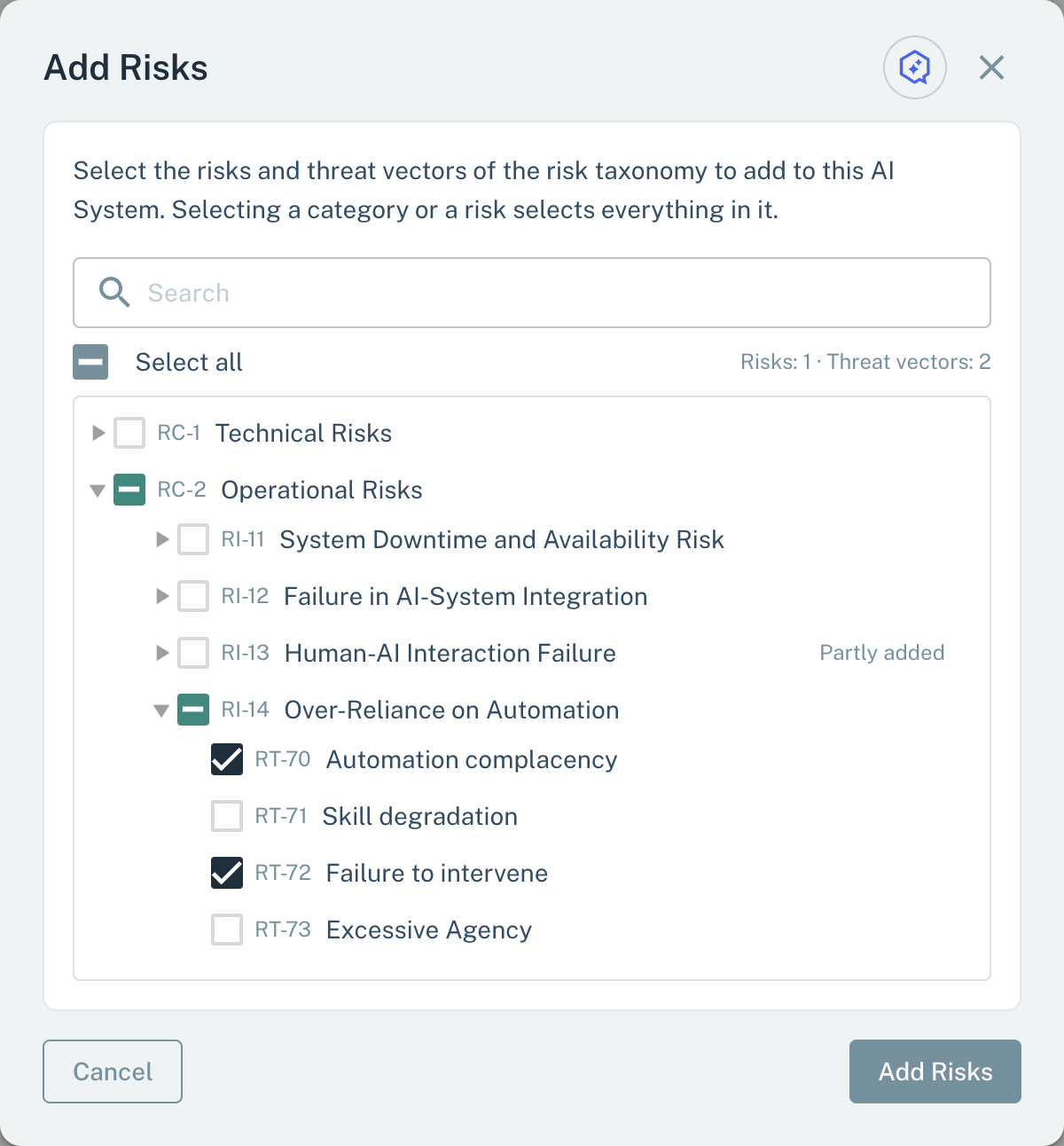
- 1Risk*The taxonomy risks of the category that the AI System does not have.
- 2Risk LimitThe limit that Modulos calculates for this risk.
- 3Threat Vectors*Select one or more threat vectors of the taxonomy risk.
The risk page
Select a risk on the Risks tab to open its page. The page has three cards and two tabs:
- Total Risk Value: the sum of the quantified risk threats, and the risk limit with the percentage that the risk uses.
- Limit Utilization: the percentage of the risk limit that the risk uses.
- Risk Limit: the limit of the risk, or No risk limit.
- The Threat Vectors tab: the Associated Threats table with Threat Name, Quantified Value, Method Used, Status, and Contribution. Contribution is the value of the risk threat as a percentage of the risk limit.
- The Risk Value Over Time tab: the total value of the risk threats across time, and a line for the risk limit. The Stacked and Breakdown views show each risk threat.
On each row of the Associated Threats table, Quantify starts the quantification wizard, and See details opens the Threat Quantification Detail page. While a risk threat is In Progress, its Quantify button is not available. See How to run quantification.
To change the risk, select Edit Risk. In this dialog, you can set or remove the manual override of the risk limit. An Owner can also delete the risk in this dialog. To add or remove risk threats, use Add Threat and Edit Threats above the table.
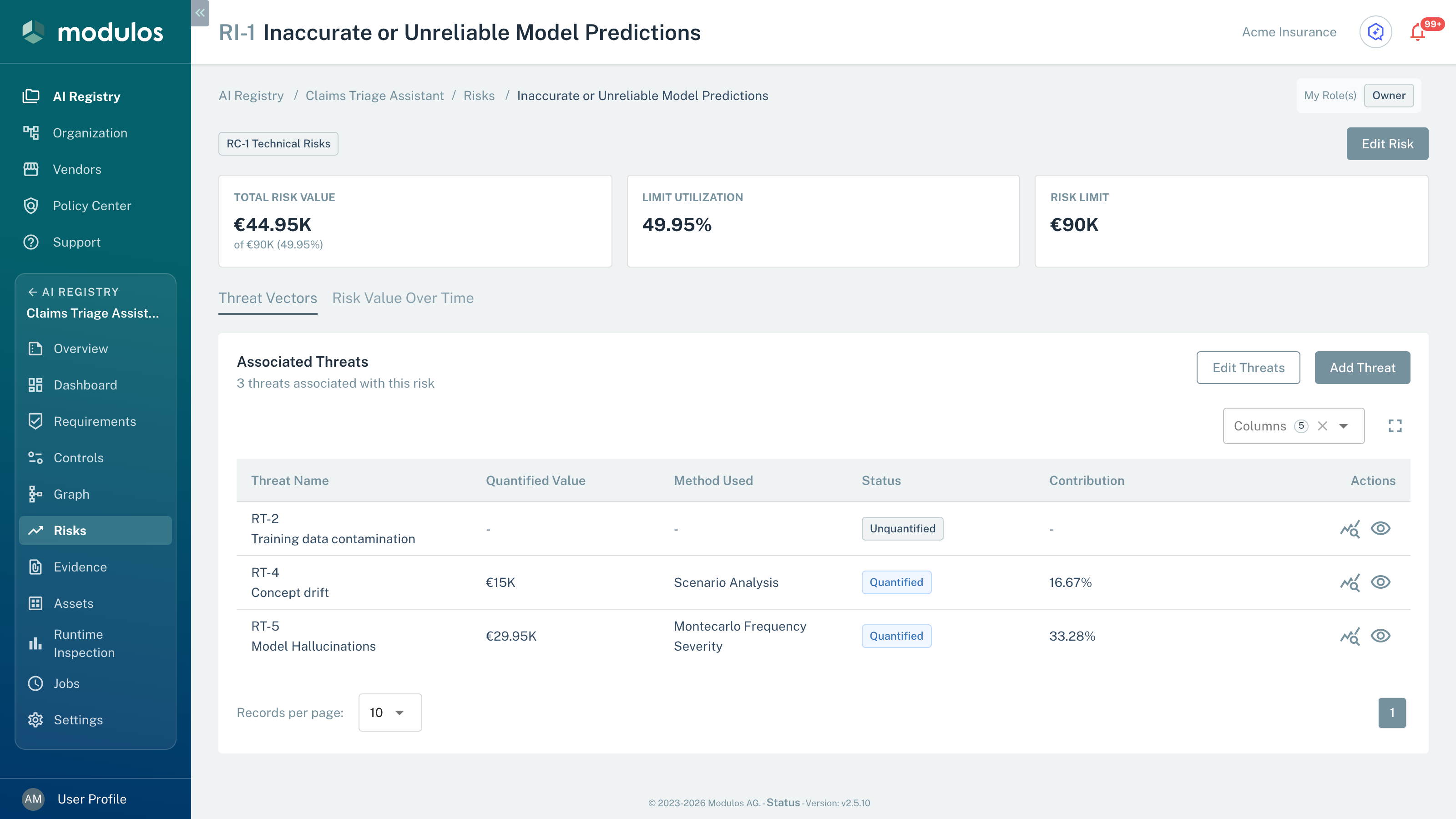
- 1Total Risk ValueThe sum of the quantified risk threats against the risk limit.
- 2QuantifyStarts the quantification wizard for this risk threat.
- 3ContributionThe value of the risk threat as a percentage of the risk limit.
Quantify risks on a schedule
The Create Job button on the Risks tab makes a Job that quantifies the selected risk threats with the Risk Agent. The Job runs on a schedule or by hand. Only users that can quantify threats see the button.
- On the Risks tab, select Create Job.
- Select the risks or the risk threats, and then select Next.
- Type a Job name, or keep the name that Modulos suggests.
- Set the schedule, or clear Run on a schedule to run the Job only by hand.
- Select Create Job, or select Create and Run.
If you select all risk threats of a risk, the Job keeps the risk. Each run then quantifies the risk threats that the risk has at that time. If you select only some risk threats of a risk, the Job keeps only those risk threats.
For the schedules and the Job pages, see Jobs.
Status and rollups
In the platform model:
- Each risk threat gets its status from its newest quantification run: Unquantified, In Progress, Quantified, or Failed.
- An AI System risk has the status Unquantified when all its risk threats have the status Unquantified. It has the status Quantified when all its risk threats have the status Quantified. In all other conditions, it has the status In Progress.
A risk includes the value of each quantified risk threat, also when other risk threats of the risk have no value. For the full rules, see How risk becomes a portfolio signal.
Quantification is asynchronous. After you start a run, the status of the risk threat is In Progress. It changes to Quantified or Failed when the run is complete.
Important considerations
Each risk has a limit. Modulos calculates it from the limit of the AI System and the category limit. To set a different limit, select Edit Risk on the page of the risk, and then select Override with manual value. For the rules, see Risk Operating Model.
A Draft or Rejected AI System has no risk limit. The risks of a Rejected AI System show No risk limit.
Systems that you make and systems that you buy
The quality of a quantification is a result of what you can see and control.
- If you make the system, you have access to the model and to the deployment. Your quantification can be accurate at the model level and at the deployment level.
- If you buy the system, you usually have no access to the training data, the model internals, or the evaluation artifacts. Your best data for quantification is usually in the deployment context: integration, usage patterns, monitoring, and incident response.
For a system from a vendor, get sufficient documentation to defend your quantification. This documentation includes the known problems of the system, the evaluation artifacts, and the limits of operation.
Related pages
Operating Model
Where to do risk work, roles, totals, and risk limits
Organization Taxonomy
The shared library of categories, risks, and threat vectors
Risk Quantification
Quantify each threat to get a monetary value
Acting on Quantified Risk
Compare values with limits, decrease risk through Controls, and quantify again