

Appearance
AI System Dashboard
The AI System dashboard shows the status of the governance work of one AI System. It shows what is complete, where work stops, and how the risk value compares with the risk limit.
What this is
Use the dashboard to answer three questions quickly:
- Is this scope on the correct path for the audit?
- What stops the work at this time?
- Where is the risk, and how does it compare with the limits?
Where in Modulos
AI System → Dashboard
The Dashboard shows the status of the work. The registration record is on AI System → Overview: the intended purpose, the EU AI Act classification, an Owner, the Current State, and the scopes. For a Pending, Approved, or Rejected AI System, the Overview is the first item in the sidebar, and it opens from the AI Registry. A Draft opens in the registration wizard and has no Dashboard. The organization AI System has no Overview and opens on its Dashboard. See Register an AI System.
Who can do what
Permissions
- All members of the AI System can see its dashboard. When governance is on for your organization, all members can also use Export.
- The items in Add New show only for users with the related right. For example, Framework needs the right to add frameworks, and User needs the right to give AI System roles.
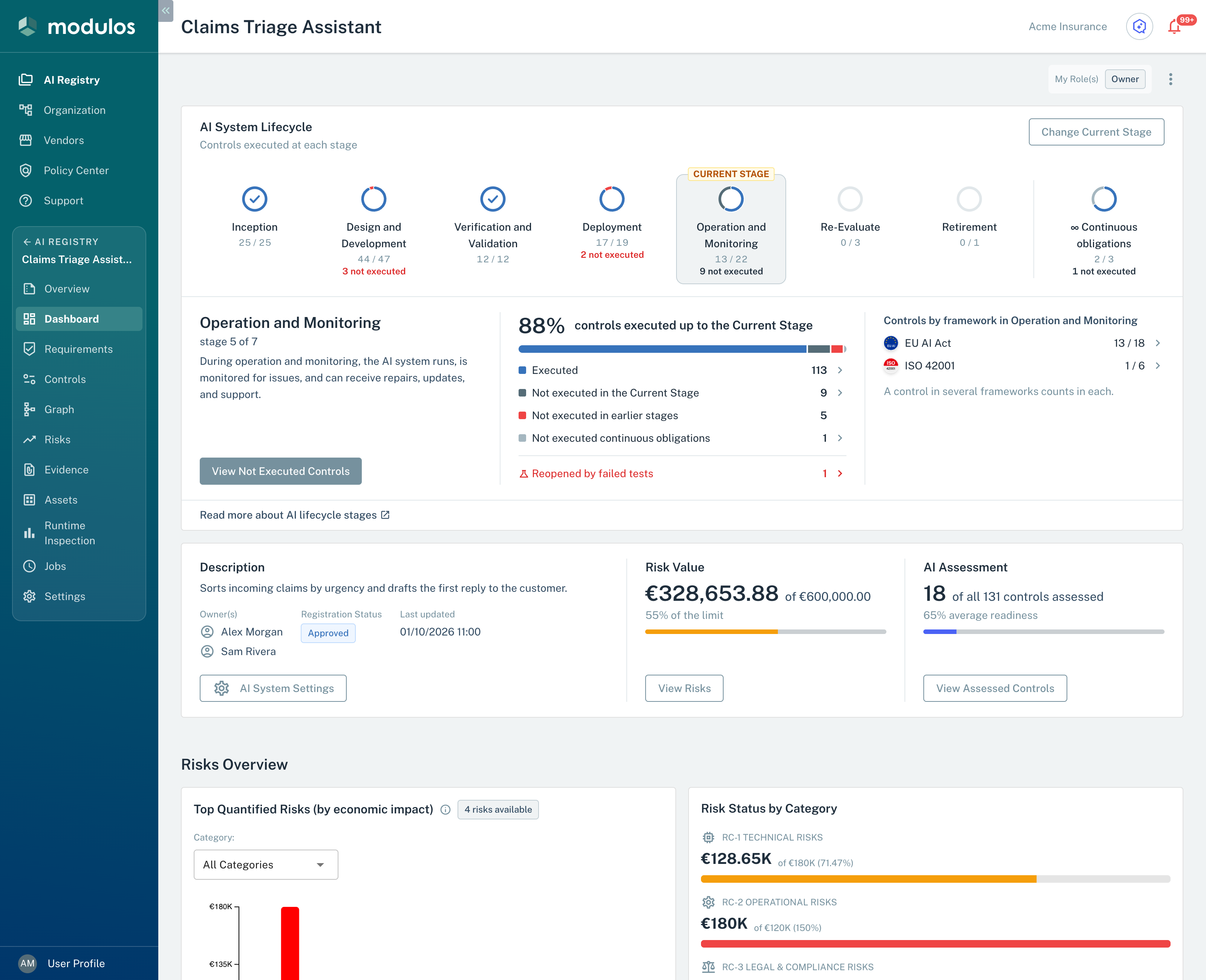
- 1Owner(s)The Owners, the date of the last change, the AI lifecycle stage, and the description of the AI System.
- 2ProgressThe share of Controls in each status, with the percentage that is complete.
- 3AI System Risk ValueThe quantified risk value compared with the risk limit of the AI System.
- 4AI System LifecycleThe Controls of each AI Lifecycle Stage, with the current AI Lifecycle Stage marked.
How it works
The dashboard collects the data of the work items of the AI System.
Header and summary cards
- Export makes one PDF of the AI System. It shows when governance is on for your organization. See Reports & Exports.
- Add New opens a menu with Framework, Evidence, Asset, and User. Framework opens
Settings → Frameworks. If a framework is not at its latest version, Modulos first asks you to update it in Settings. - A card shows Owner(s), Last updated, the AI Lifecycle Stage, and the description of the AI System.
Governance status
When governance is on for your organization, the Progress card shows the share of Controls that are Executed, Out of scope, Archived, and Not executed. The percentage in the card shows how much is complete.
The Frameworks section at the bottom of the page has one card for each framework of the AI System. Each card shows the completed and total Requirements and Controls of the framework. See details opens the Requirements of that framework. Add Framework opens the Add Framework(s) dialog of Settings → Frameworks. If a framework of the AI System is outdated, Modulos first tells you to update it in Settings.
AI Assessment Progress
When the Control Assessment Agent is on for your organization, two cards below the summary cards show its coverage:
- AI Assessment Coverage: the number of Controls with a stored assessment, out of all Controls that the agent can assess, with a percentage. Archived and Out of scope Controls do not count. Executed Controls count.
- AI Readiness: the average readiness score of the assessed Controls. The card shows a dash until there is a minimum of one assessment.
Only the latest assessment of each Control counts. The footer shows the date of the last assessment. Each card opens AI System → Controls with a filter: the Controls without an assessment, or the assessed Controls with the lowest score first. See Control Assessment Agent.
AI lifecycle stage
For each AI System, the AI System Lifecycle section shows the lifecycle stages and marks the current lifecycle stage. For each lifecycle stage, it shows the number of Controls, the number of Executed Controls, and the number of Not executed Controls. Use it to see the work in each lifecycle phase.
The organization AI System does not show this section.
Risk signals
When risk management is on for your organization, the dashboard shows:
- the AI System Risk Value card: the total quantified risk value and the percentage of the risk limit that it uses
- Risks Overview: the top quantified risks by value, with a filter for one risk category, and Risk Status by Category
- Risk Value Over Time: the risk value of the AI System in a time range, compared with its risk limit
A Rejected AI System has no risk limit, and the card shows No risk limit. See Registration approval.
The risk values help you make decisions. The audit trail is on the items and in their Comments and Logs.
Dashboard rollups
Two summaries. One audit-ready record.
Governance progress
The status of each Control goes directly into the Progress card.
Controls
Progress card
A separate section:
Frameworks cards
Risk decision signals
The quantified values add up. Modulos compares the total with the risk limit.
Threat Vectors
Risks
AI System Risk Value card
Audit-ready execution
What an auditor can verify in this AI System
✓Traceable status changes
✓Evidence attached
✓Decisions documented
The dashboard is a summary. The audit trail is in Comments and Logs: on each Control, Requirement, and Asset, and on the AI System Overview. Open an item to see who changed what, when, and why.
How to use it
1
Start with the scope
Make sure that the AI System description agrees with what you govern
2
Find what stops the work
Look for Not executed Controls and Requirements without the Evidence that they need
3
Do the largest gaps first
Work on the Controls and Requirements with the most work that remains
4
Use risk to make decisions
Quantify and monitor the most important threats and compare them with the limits
5
Open the audit trail
Open the items to see the rationale, the Evidence, and the logs
Important considerations
- The dashboard is a summary. Make sure that each decision is traceable through Evidence, reviews, and the logs of the items.
- If the dashboard is not complete, the cause can be a missing scope, missing frameworks, or missing permissions.
- Use the AI lifecycle stage for reports, not as a gate for compliance.
Related pages
Compliance Graph
Map of frameworks, Requirements, Controls, and tests
AI System Settings
Set the lifecycle stage, frameworks, Sources, and access
Reviews and Statuses
How Control statuses and Requirement reviews make approvals that you can audit
Portfolio Overview
How the risk of each AI System adds up in the organization view