

Appearance
Evidence
Evidence is the proof layer of Modulos. An Evidence item can be a policy document, a screenshot, an export, a log sample, a contract, or a test output that shows that a Control is done.
What this is
Evidence changes "we did it" into "we can show it".
In Modulos, Evidence has two properties:
- one location for each file: an Evidence item is in the Evidence Library of the AI System, and you attach it to the Controls that it applies to
- use in more than one Control: you can attach one Evidence item to many Controls
For the full flow, see Governance Operating Model.
Where in Modulos
AI System → Evidencehas the tab Evidence Library. It lists the Evidence of the AI System with the columns Name, Type, Size, Control(s), Uploaded at, and Uploaded by. New uploads go to the tab Evidence Creation first, which shows only while it holds uploads. The files that you accept from a Scout proposal also go to this tab (Propose Evidence). The Evidence Agent suggests the Controls for each upload. To add the uploads to the library, select them and select Create n Evidence. Modulos then permanently deletes the uploads that you did not select. New Evidence starts an upload, or opens Evidence Creation while it holds uploads.AI System → Controls → open a Control → Control tab → Evidenceto attach Evidence to that Control
Who can do what
Permissions
- All members of an AI System can see and download its Evidence.
- AI System Owners and Editors can upload, edit, attach, and delete Evidence.
- Evidence is an audit item. Modulos locks it when a Control that uses it has a final status.
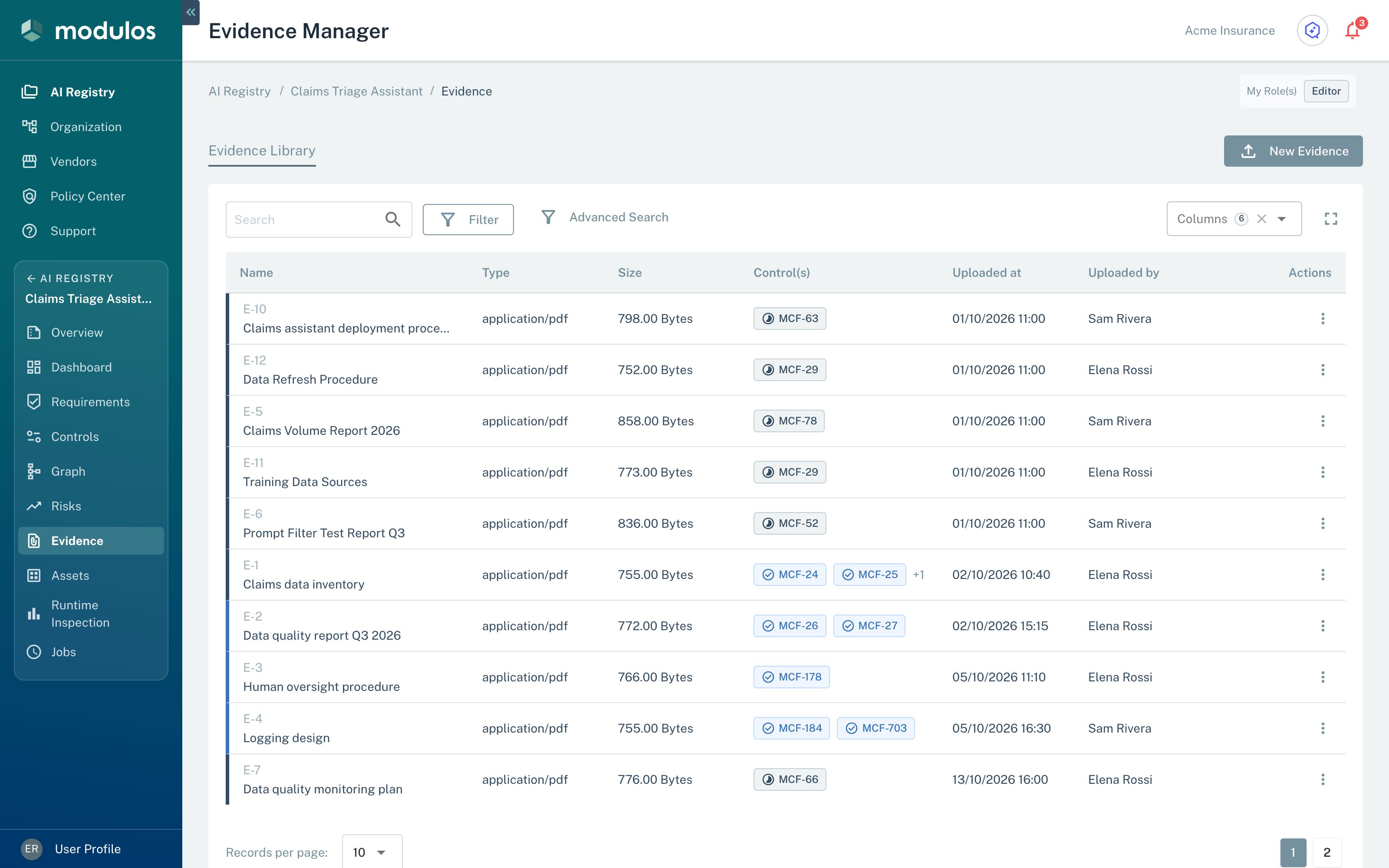
- 1Advanced SearchFind Evidence by its Controls and by its upload date before you upload a file again.
- 2New EvidenceUpload files. They go to Evidence Creation before they go into the Evidence Library.
- 3Control(s)Shows the Controls that each Evidence item is attached to.
- 4ActionsCopy a link to, preview, download, or delete an Evidence item from its menu.
How it works
Evidence is a file-like object with metadata
An Evidence item is a file with metadata: a code, a name, a description, the file name and type, a URI, and an optional checksum. Evidence items are in the Evidence Library of the AI System. So you can attach one item to more than one Control.
After an upload, Modulos processes the file so that the AI agents can read it. Processing uses the AI quota of the organization. Until the processing is done, the item shows one of these badges:
- Processing document…: Modulos waits to process the file, or processes it. The tooltip shows the stage, for example Extracting text or Indexing. After a temporary failure, Modulos tries again automatically, and the badge stays.
- Waiting for AI quota: the AI quota of the organization is used up. Modulos processes the file automatically when the quota has space again, for example in the next month. See AI usage.
- Processing failed: Modulos cannot read the file, for example because the file is damaged, encrypted, or empty. The tooltip tells the cause. On the Evidence Creation tab, the cause shows below the badge. Upload a copy of the file that Modulos can read.
When the processing is done, the badge goes away. You can create and attach Evidence while Modulos processes it. The Evidence Agent and the Control Assessment Agent read only processed files. When no AI agent is available in your organization, Modulos does not process uploads and shows no badge.
Upload files
New Evidence opens the Add New Evidence dialog. Drop the files there, or click to browse:
- Supported formats: .jpg, .jpeg, .png, .gif, .bmp, .webp, .pdf, .txt, .md, .csv, .docx, .xlsx, and .pptx.
- Limits: 100 files in one upload, and 50 MB for each file.
- Modulos uploads each file when you add it. Abort Upload stops the upload, and Retry Upload sends the failed files again. Add File(s) is available when all uploads are complete.
On the Evidence Creation tab, a file that is already in the Evidence Library shows Duplicate of with the code of that Evidence item. A file that you uploaded two times shows Duplicated. Modulos does not select duplicates for Create n Evidence, but you can select them.
The preview of an Evidence item shows PDF files and images. For other file types, it shows No preview available and Download. In the Evidence Library, the menu of each row has Copy Link, Preview, Download, and Delete. Copy Link copies a link that opens the preview of the item.
Evidence attaches to Controls
Each Control has one Evidence section on its Control tab. You attach Evidence there, or you link Evidence to Controls when you complete an upload on the Evidence Creation tab. This lets auditors see which Evidence belongs to which Control.
The diagram below shows Evidence that is attached to more than one Control.
Evidence linking
One Evidence file, attached to two Controls, gives proof for three Requirements.
data_pipeline_logs.pdf
MCF-184Logging Capability
MCF-223Data provenance
EU AI ActArt. 12 — Record-keeping
ISO/IEC 42001AI system life cycle
ISO/IEC 42001Data for AI systems
1 Evidence · 2 Controls · 3 RequirementsEach Control has one Evidence section. Attach the file to each Control that it proves. The Control must be Not Executed and in the same AI System. You do not upload the file again.
Locking preserves audit integrity
You can edit an Evidence item, and attach it to more Controls, while all the Controls that use it are Not Executed. When one of these Controls is Executed, Out of Scope, or Archived, Modulos locks the Evidence item. Then nobody can edit the item or change its Controls from the Evidence Library. In the Evidence section of a Not Executed Control, you can attach the locked item or remove it.
This prevents changes to audit proof after the work is done.
The diagram below shows how Evidence goes from editable to locked.
Evidence locking
Evidence locks while a Control that uses it has a final status.
Step 1
Not Executed
EditableAll the Controls that use it are Not Executed. You can edit it, attach it to a Not Executed Control of the same AI System, or remove it from a Control.
Step 2
Final status
LockedOne Control that uses it is Executed, Out of Scope, or Archived. You cannot edit it or change its Controls in the Evidence Library. In the Evidence section of a Not Executed Control, you can still attach it or remove it.
Step 3
Not Executed again
EditableAll its Controls are Not Executed again. Modulos logs each status change.
Locking keeps the audit proof correct after the work is done. The dashed arrow shows that a Control can go back to Not Executed, and Modulos logs the change. You cannot change the status of a Control that is mapped to a Fulfilled Requirement. A test result or an archived Policy can still set it back to Not Executed.
How to use it
1
Start from a Control
Find the Control that needs proof
2
Upload Evidence
Upload the file, then create the Evidence item in the Evidence Library with a clear name and description
3
Attach it to the Control
Attach the Evidence in the Evidence section of the Control
4
Use it again only when correct
Attach the same Evidence to a different Control only when it shows the same thing
5
Know about the lock
The Evidence locks when a Control that uses it gets a final status
Important considerations
- Give each Evidence item a clear name. "Policy.pdf" does not help. "Access control policy v3.2 (approved 2026-01-15)" does.
- When possible, upload the primary item (a log, a configuration, a contract, a test output) and not a screenshot of it.
- If you use screenshots, add notes to them and give the date.