

Appearance
Reviews & Statuses
What this is
A status shows the condition of a work item. Logs, comments, and Reviews make each status change auditable.
In Modulos, each object type gets its final status differently:
- Controls: the Control Owner or the owner of a mapped Requirement sets the status directly. Modulos logs each change. A comment is necessary in one condition only.
- Requirements: when all mapped Controls have a final status, the Requirement is ready for review. The Requirement Owner then marks it Fulfilled.
- Assets: a status change goes through a Review request, and a selected reviewer (an AI System Owner) selects Approve or Reject.
For the full model, see Governance Operating Model.
The diagram below shows how status changes, comments, and Reviews connect into an audit trail.
Audit trail
A user action becomes a durable audit trail through object logs.
Action
Update control
Attach evidence
Mark requirement fulfilled
Capture
Log entry on objectDurable
Timestamp, actor, before/after — kept on the object. This is the auditor's source of truth.
Notification to assignee
Personal queue, dismissable — moves work along but is not the audit record.
Audit trail
Comments and Logs
whowhatwhenwhyevidence
Status changes, comments, and review decisions land on the same trail. Auditors trace the thread from any object.
Notifications are personal and dismissable; logs are durable and auditable. Encourage teams to capture rationale in comments — that's what closes the loop for an auditor.
Who can do what
- Controls: only the Control Owner or the owner of a mapped Requirement can change the status, whatever their organization role. Other users see the selector or the text, but Modulos rejects their change. For the table, see Controls.
- Requirements: only the Requirement Owner can change the status.
- Assets: the selected reviewers, who are AI System Owners, approve or reject a Review request.
How it works
Each object type has its own statuses. The diagram below compares the Control status and the Requirement status.
Controls vs requirements
Same trail, different jobs: implementation versus obligation.
Concept
Controls
Status
Not ExecutedExecuted
Status change
Direct change+Logged
A comment is necessary only when an Executed Control goes back to Not Executed while a mapped Requirement is ready for review.
Locks
A Control with a final status is locked. You cannot edit its report or its Evidence.
Concept
Requirements
Status
Not FulfilledFulfilled
Readiness
Becomes ready when all mapped Controls have a final status.
Fulfillment
The Requirement Owner marks it as Fulfilled.
WhyControls are implementation units. Requirements are obligations. The two statuses answer different audit questions.
Controls
A Control has one of four statuses: Not Executed, Executed, Out of Scope, or Archived. Executed, Out of Scope, and Archived are final statuses.
You set the status in the Status field of the Control. The field is a selector for users who can edit Controls. These users are AI System Owners, Editors, and users with access to all AI Systems. Other users see the status as text. The selector has Not Executed, Executed, and Out of Scope. You cannot select Archived.
Modulos saves a status change only from the Control Owner or from the owner of a mapped Requirement. It rejects a change from other users. There is no reviewer approval for Controls. A change applies as follows:
- Out of Scope: the dialog Mark this control as Out of Scope opens. Select Confirm to apply the change.
- Executed to Not Executed, while a mapped Requirement is Not Fulfilled and ready for review: the dialog Change Control status to "Not Executed" opens. You must type why you make the change before you can select Confirm. This text becomes a comment on the Control.
- Executed to Not Executed, in all other conditions where a mapped Requirement is ready for review: Modulos rejects the change with an error. In these conditions, the Requirement that is ready for review is Out of Scope or Archived, and the dialog does not open.
- All other changes apply immediately.
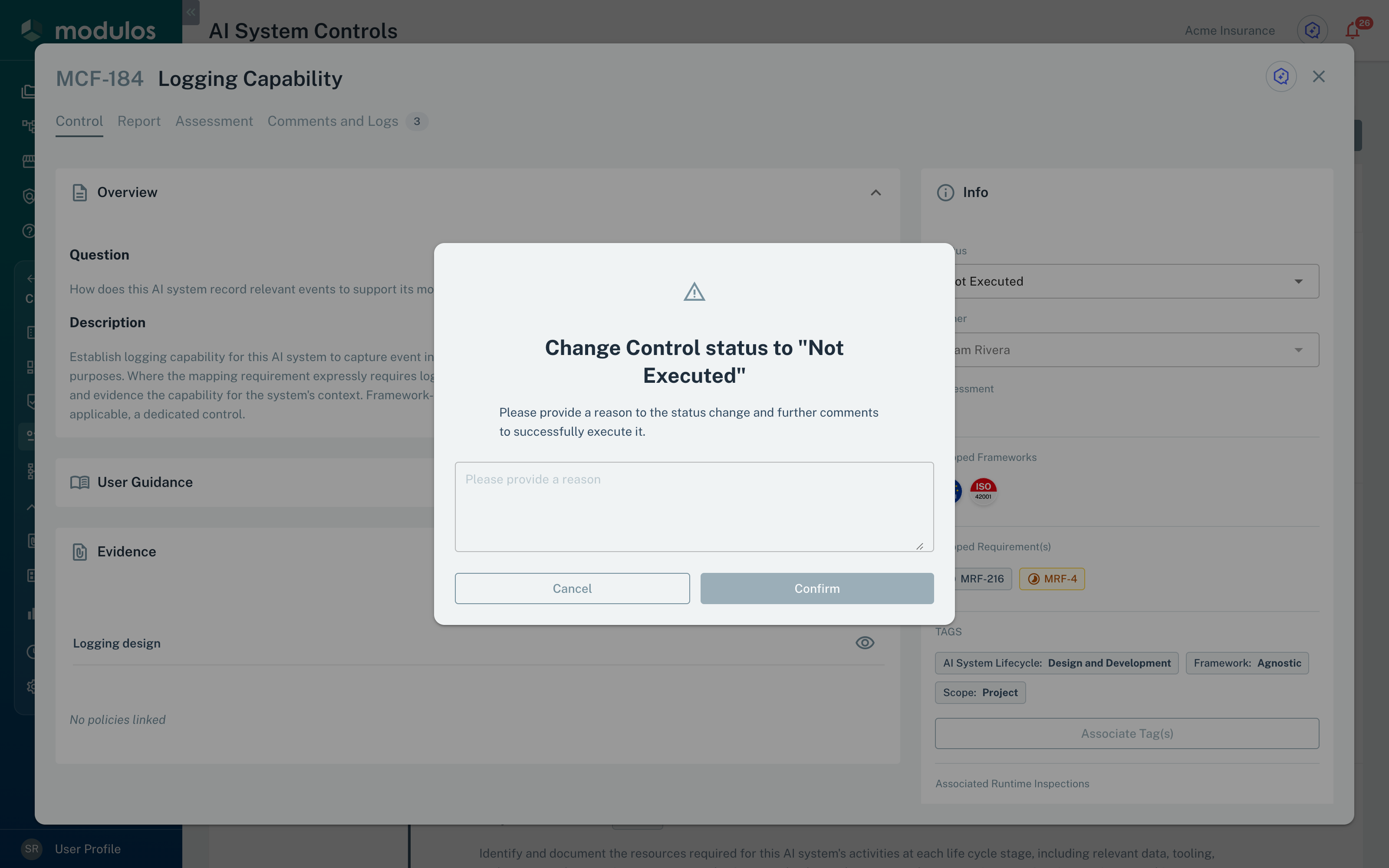
- 1Change Control status to "Not Executed"The dialog opens only when a mapped Requirement is Not Fulfilled and ready for review.
- 2Please provide a reasonType the reason. It becomes a comment on the Control.
- 3ConfirmAvailable after you type the reason.
Modulos records each status change in the Comments and Logs of the Control: who changed the status, when, and from which status to which status. Modulos also sends a Status changed notification.
While a Control has a final status, its content is locked. You cannot edit the report or change the Evidence, and the Owner field is locked. The owner of a mapped Requirement can select a different Control Owner in the Mapped Controls of the Requirement. The Status field stays available.
A Control that is mapped to a Fulfilled Requirement cannot change its status. Modulos shows the error "Cannot update controls of the fulfilled requirement" and the name of the Requirement. To change the Control, the Requirement Owner first sets the Requirement to Not Fulfilled.
Modulos also sets an Executed Control to Not Executed automatically in these conditions:
- a mapped Metric Test fails or has an error
- a mapped Agent Test fails
- a user archives a Policy that is linked to the Control
An Agent Test error does not change the Control.
The log of the Control gives the cause, and each Fulfilled mapped Requirement goes back to Not Fulfilled. For test results, see Results & Remediation. For Policies, see Lifecycle & Approvals.
Requirements
A Requirement has the status Not Fulfilled, Fulfilled, or Out of Scope. Modulos can also set Archived.
A Requirement also has a second signal. When all mapped Controls have a final status, the Requirement is ready for review. The Requirement Owner then examines the Controls and their Evidence and selects Mark as Fulfilled. Only the Requirement Owner can change the status of a Requirement. This step is the Review of record for a Requirement. For the procedure, see Requirements.
Assets
An Asset has the status In Progress, In Review, or Completed. Assets are the only object type with a formal Review request. Modulos locks the content, the Assigned To field, Edit Info, and the comment editor of an Asset that is In Review or Completed.
To request a status change for an Asset:
- Open the Asset and select Request status change.
- In Status Change, select the new status.
- In Reviewer(s), select one or more AI System Owners.
- Optional: type a Comment.
- Select Submit.
The Asset then goes to In Review. Each reviewer sees the banner Status Change Request assigned to you. with the button Review Request. On the Comments and Logs tab, the reviewer types the decision in the Review section and selects Approve or Reject. The button Approve applies the new status. The button Reject keeps the previous status. The first decision closes the Review, and the decision goes into the history of the Asset.
An AI System Owner can also select Force Update in the request dialog. This changes the status without a Review.
Change or cancel a Review request
While an Asset is In Review, its Asset tab shows the banner This asset is under review by with the names of the reviewers. If a reviewer is not available, two actions change the pending request:
- Cancel Request, in the banner: an AI System Owner or Editor cancels the request. After you confirm, the Asset gets the status that it had before the request. The log of the Asset records the change, and the reviewers and the requester get a notification.
- Edit Reviewer(s), in the Review section on Comments and Logs: an AI System Owner selects different reviewers and can type a Comment. The Asset stays In Review with the same requested status. The new reviewers get a notification, and the reviewers that you remove can no longer decide.
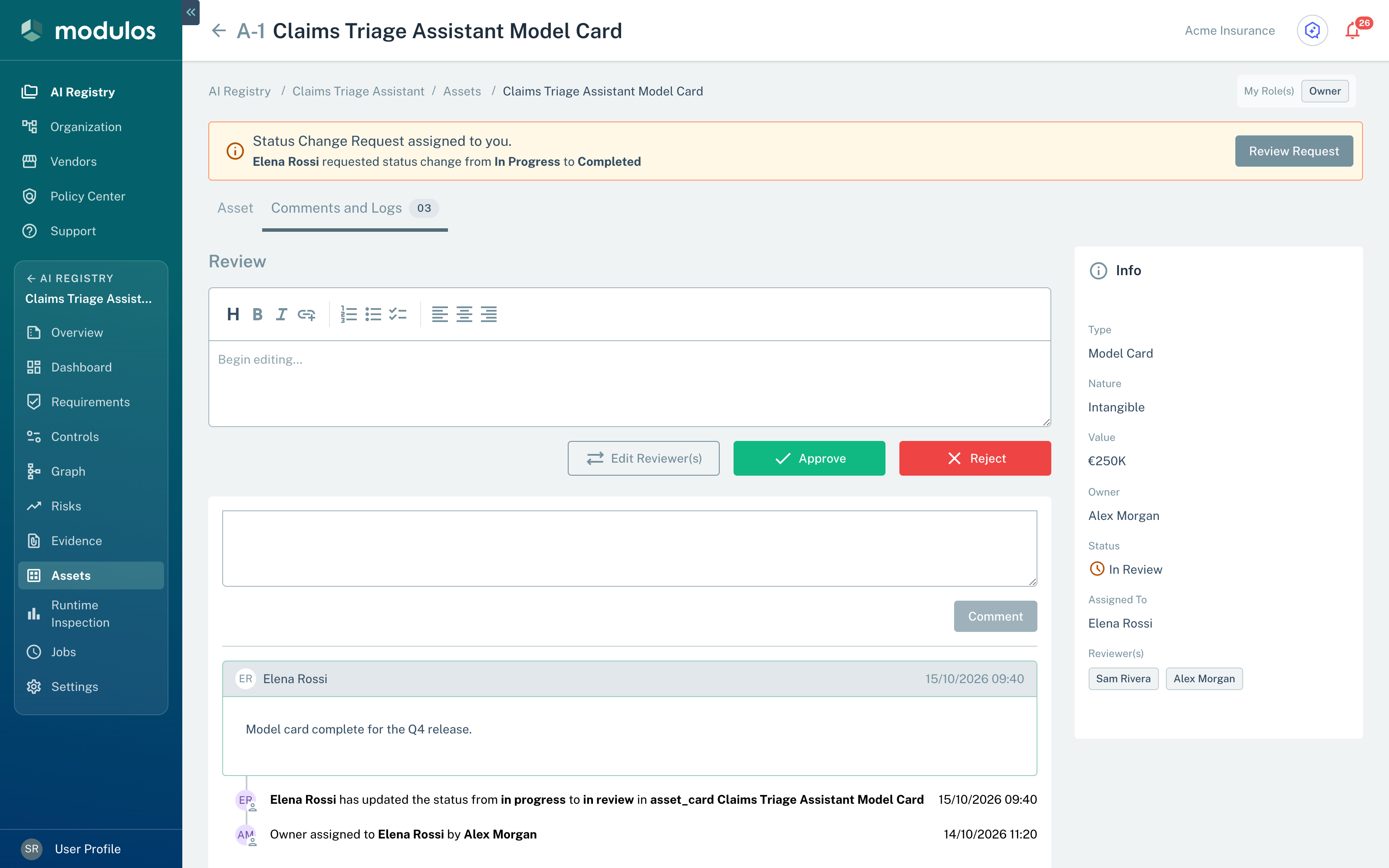
- 1Status Change Request assigned to you.Shows that you are a reviewer of this request.
- 2ReviewType the reason. It becomes a comment on the Asset.
- 3Approve / RejectApprove applies the requested status. Reject keeps the previous status.
- 4StatusShows In Review and the reviewers of the request.
How to use it
Changes to a system, a vendor, or an incident can change what a Control must include. Modulos lets you reopen work and keeps the cause on the same trail:
- To reopen an Executed Control, set it to Not Executed. If a mapped Requirement is Not Fulfilled and ready for review, you must type why.
- To reopen a Control of a Fulfilled Requirement, the Requirement Owner first sets the Requirement to Not Fulfilled. Then the Control Owner changes the Control.
- A failed test, a Metric Test error, or an archived Policy reopens the Control automatically and logs the cause.